Channel Graphics Module
The Channel Graphics module is 7CG's live control surface for persistent channel overlays such as the on-air Bug and ID graphics.
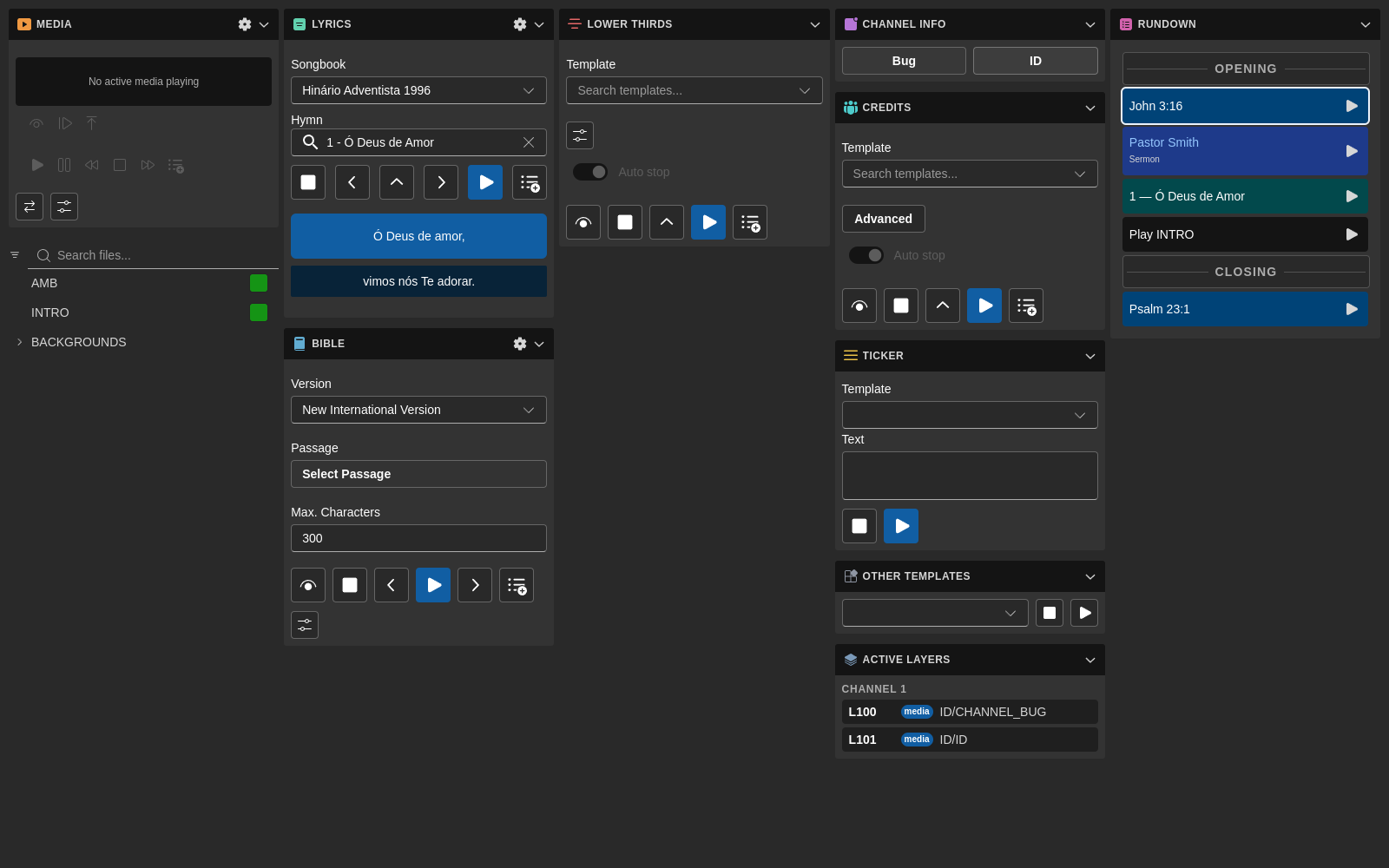
It combines:
- Quick live toggles for Bug and ID overlays
- Shared fade transitions for on/off actions
- Startup autoplay behavior driven by saved settings
- A clean separation between saved configuration and live runtime state
- Companion-aware state broadcasting for overlay activity
Overview
The Channel Graphics module allows you to:
- Turn the configured Bug overlay on and off
- Turn the configured ID overlay on and off
- Use the saved channel, layer, and file settings without reopening configuration
- Rely on autoplay settings to restore overlays on startup
- Keep Companion and the UI aligned with current bug and ID activity
This module is intentionally simple. It is for live operation, not for choosing files or editing routing details. Configuration happens in Configuration → Channel Graphics, while this module is where operators trigger the overlays during a production.
Interface Components
Bug Toggle
The Bug toggle turns the configured bug overlay on or off.
When enabled, 7CG sends the configured media file to the bug's saved channel and layer. When disabled, 7CG clears that same layer by playing EMPTY.
ID Toggle
The ID toggle works the same way for the configured channel or program ID overlay.
Like the Bug toggle, it uses the saved channel, layer, and file values and clears the layer with EMPTY when switched off.
No Inline Configuration
The module does not expose:
- File browsing
- Template selection
- Advanced routing dialogs
- Rundown creation
Those choices are already defined in the Channel Graphics configuration page. The module is meant to stay fast and predictable for live use.
Playback Behavior
Both toggles use a media/play workflow rather than a CG-template workflow.
Turning a Graphic On
When an overlay is activated, 7CG sends:
- The saved
channel - The saved
layer - The saved
file - A
MIXtransition
Turning a Graphic Off
When an overlay is cleared, 7CG sends the same target with:
- The saved
channel - The saved
layer - The clip set to
EMPTY - The same
MIXtransition
Fade Timing
The module derives its fade duration from the saved framerate of channel 1.
If no framerate is available, 7CG falls back to 50 fps. In practice, this means the default fade is roughly one second long.
Configuration Model
The module reads its saved settings from the Channel Graphics store, with separate blocks for Bug and ID.
Each graphic stores:
channellayerfileautoplay
Current defaults are:
- Bug: channel
1, layer100, fileID/CHANNEL_BUG, autoplayfalse - ID: channel
1, layer101, fileID/ID, autoplayfalse
For older installations, autoplay still falls back to the legacy startup keys:
startup.autoplayBugstartup.autoplayId
This keeps existing installs working while the newer settings live under the Channel Graphics configuration area.
Startup Behavior
After the Channel Graphics store finishes bootstrapping, 7CG checks whether Bug or ID has autoplay enabled.
If autoplay is enabled, the module automatically brings that overlay on air once during startup after a short delay of about one second.
This is useful for:
- A permanent live bug
- A default station ID
- Fast recovery after restarting 7CG during a production day
Runtime State and Companion
7CG keeps live overlay state separate from saved overlay configuration.
Saved Configuration
Persistent settings such as file path, channel, layer, and autoplay live in the Channel Graphics configuration store.
Live Runtime State
On-air booleans for Bug and ID live in a separate runtime store. This lets the UI and Companion react to what is currently active without treating a settings change as an on-air state change.
The Channel Graphics module participates in Companion state broadcasting so external control surfaces can reflect whether the Bug or ID overlay is currently active.
Typical Workflow
Initial Setup
- Open Configuration → Channel Graphics
- Set the channel, layer, file, and autoplay preferences for Bug
- Set the channel, layer, file, and autoplay preferences for ID
- Test both overlays once from the module
Live Operation
- Use the Bug toggle to bring the bug on air or clear it
- Use the ID toggle to bring the ID on air or clear it
- Let autoplay restore either overlay automatically on startup when required
Best Practices
- Reserve fixed layers for Bug and ID so they do not collide with lower thirds or other overlays
- Keep bug and ID on separate layers if both may be used in the same production
- Enable autoplay only for overlays that should reliably appear at every startup
- Confirm channel
1framerate settings so fade timing matches your environment - Treat this module as an operator panel and keep all file and routing changes in the configuration page