Channel Graphics
The Channel Graphics tab configures persistent channel overlays such as your bug and station or program ID.
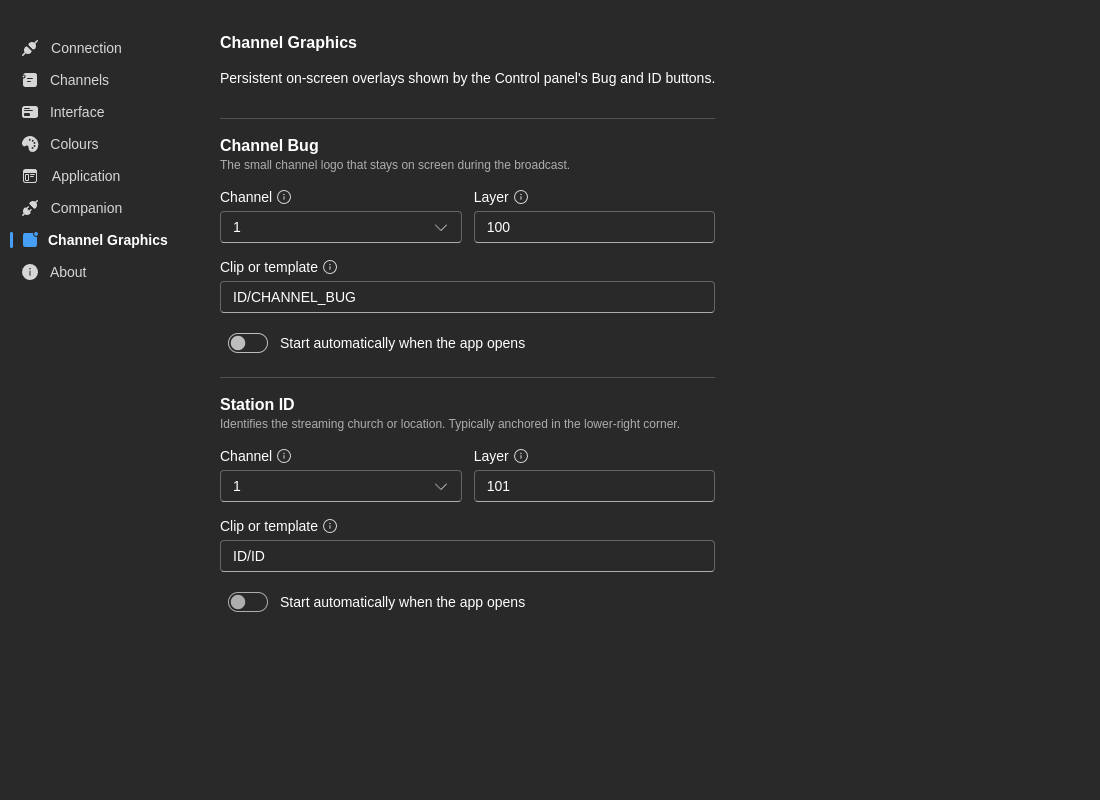
These settings replace the older idea of a separate "Startup" page. The startup-related overlay options now live here and in the first-run wizard.
Available Graphic Types
7CG currently exposes two channel graphics:
- Bug - Usually a logo in a corner of the screen
- ID - Usually a larger station, channel, or event identifier
Each graphic can be configured independently.
Settings Per Graphic
For both Bug and ID, you can configure:
- Channel - Which CasparCG channel should play the overlay
- Layer - Which CasparCG layer is used
- File - The template or media path to load
- Autoplay - Whether the graphic should start automatically when 7CG launches
Startup Behavior
If autoplay is enabled, 7CG can bring the graphic on air automatically when the application starts.
This is useful for:
- A permanent live bug
- A default channel ID used throughout the program
- Confidence graphics that should be restored without manual intervention
Use autoplay carefully in rehearsal or testing environments, especially if 7CG connects to a live server on launch.
Wizard Integration
The first-run wizard includes quick toggles for:
- Auto-play channel bug on startup
- Auto-play channel ID on startup
Those wizard options feed into the same underlying behavior documented here. After setup, this page is the right place to refine channels, layers, and file paths.
Typical Setup
Bug
- Channel: Program output channel
- Layer: A dedicated overlay layer above video playback
- File: Your bug template or graphic asset
- Autoplay: Enabled if the bug should always be present
ID
- Channel: Program or clean-feed channel, depending on workflow
- Layer: Separate from the bug if both may appear together
- File: Station or event ID graphic
- Autoplay: Enabled only if the ID should appear by default
Best Practices
- Reserve fixed CasparCG layers for bug and ID overlays
- Document the chosen layers so they do not conflict with lower thirds or other CG elements
- Test autoplay after any template or path changes
- Keep file naming consistent across installations