Layouts
7CG includes a customizable workspace so operators can rearrange the main modules to match the production workflow.
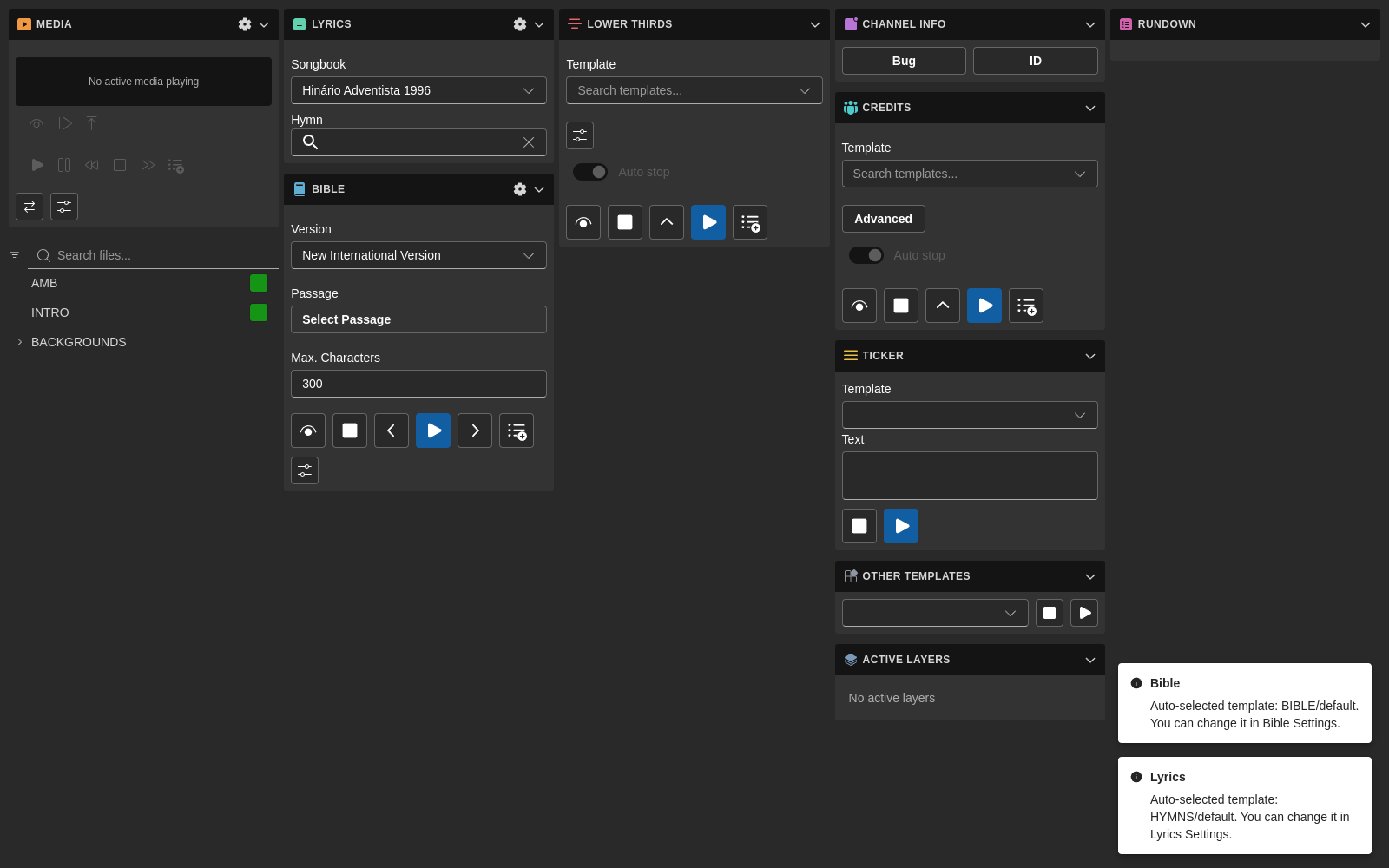
What You Can Customize
In layout edit mode you can:
- Drag modules between columns
- Reorder modules within a column
- Add and remove columns
- Resize columns
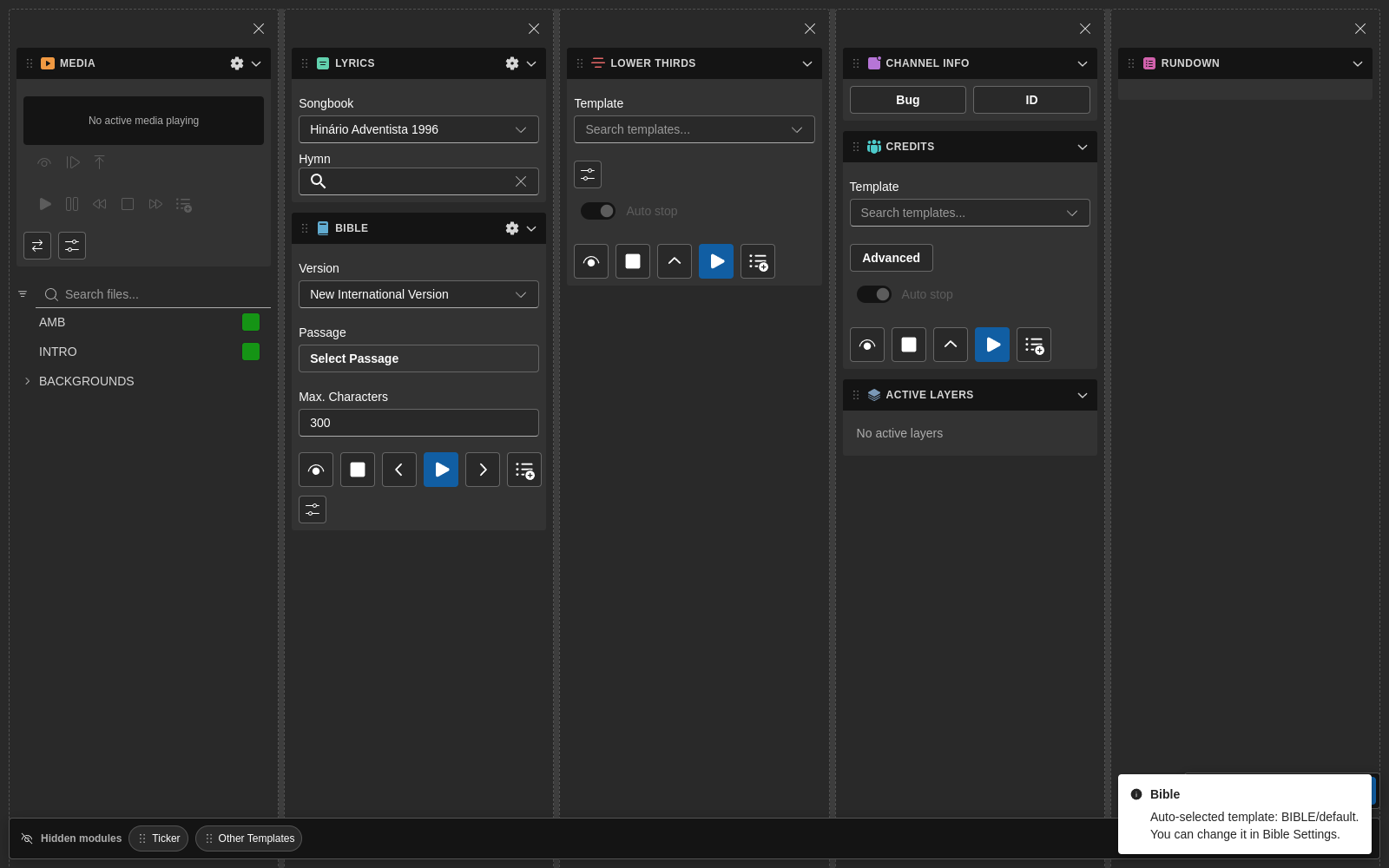
- Hide modules temporarily by dragging them to the hidden-modules rail
- Restore hidden modules
- Reset the workspace to the default layout
- Distribute all columns equally
Entering Layout Edit Mode
Use the layout customization controls in the main workspace to enter edit mode.
When edit mode is active, 7CG shows:
- Drag handles for modules
- Column removal controls
- Empty-column drop targets
- A floating toolbar with layout actions
- A hidden-modules rail for temporarily removing modules from the visible workspace
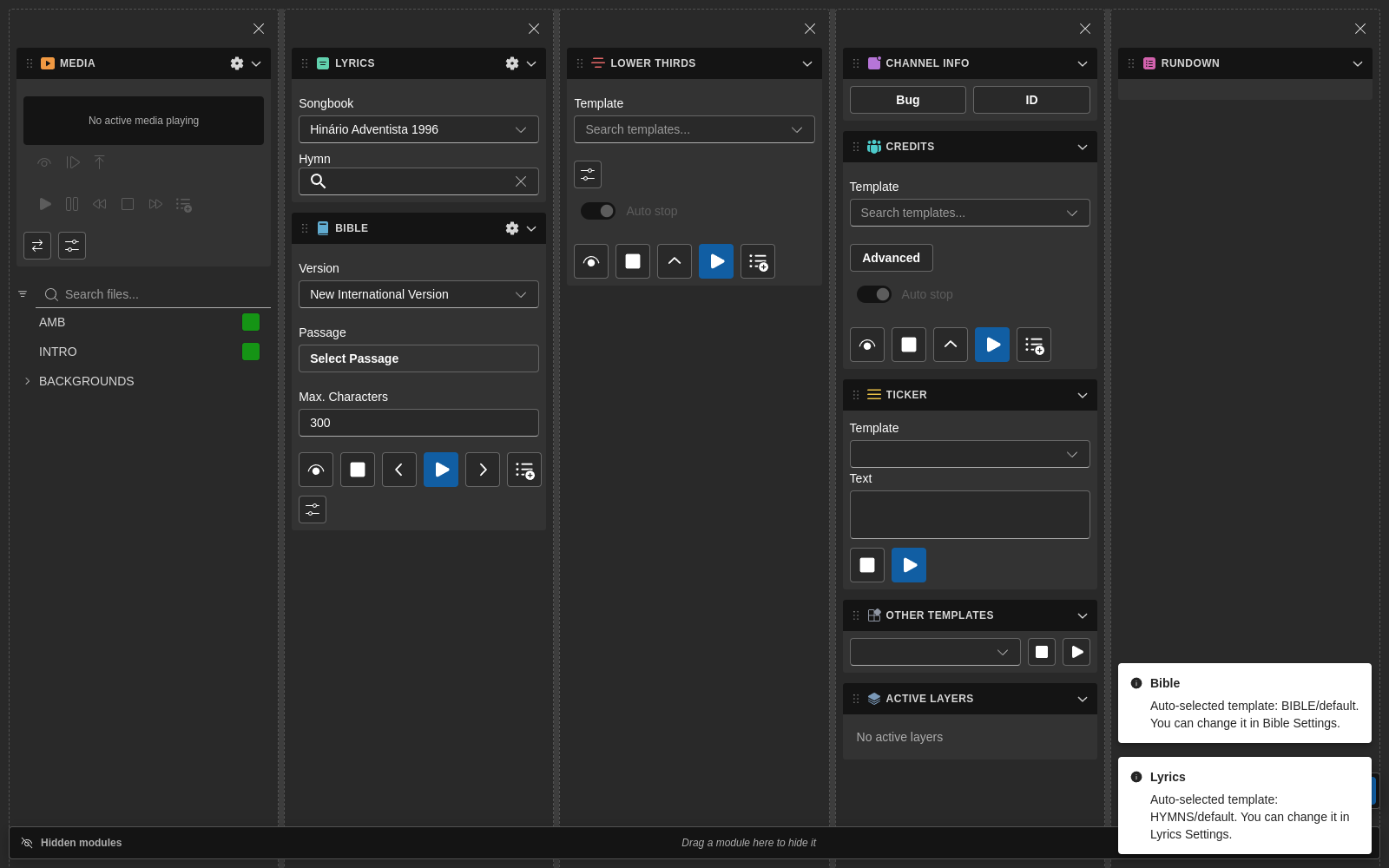
Modules dragged out of the workspace land in the hidden-modules rail on the side, where they wait until you drag them back in:
Saved Layout Presets
Recent versions of 7CG support named layout presets.
This is useful when you want different workspaces for:
- Rehearsal versus live service
- Morning service versus concert
- Graphics operator versus lyrics operator
- Compact laptop operation versus multi-monitor setups
Saving a Layout
You can save the current workspace arrangement from either:
- The layout edit toolbar
- View → Layouts in the application menu
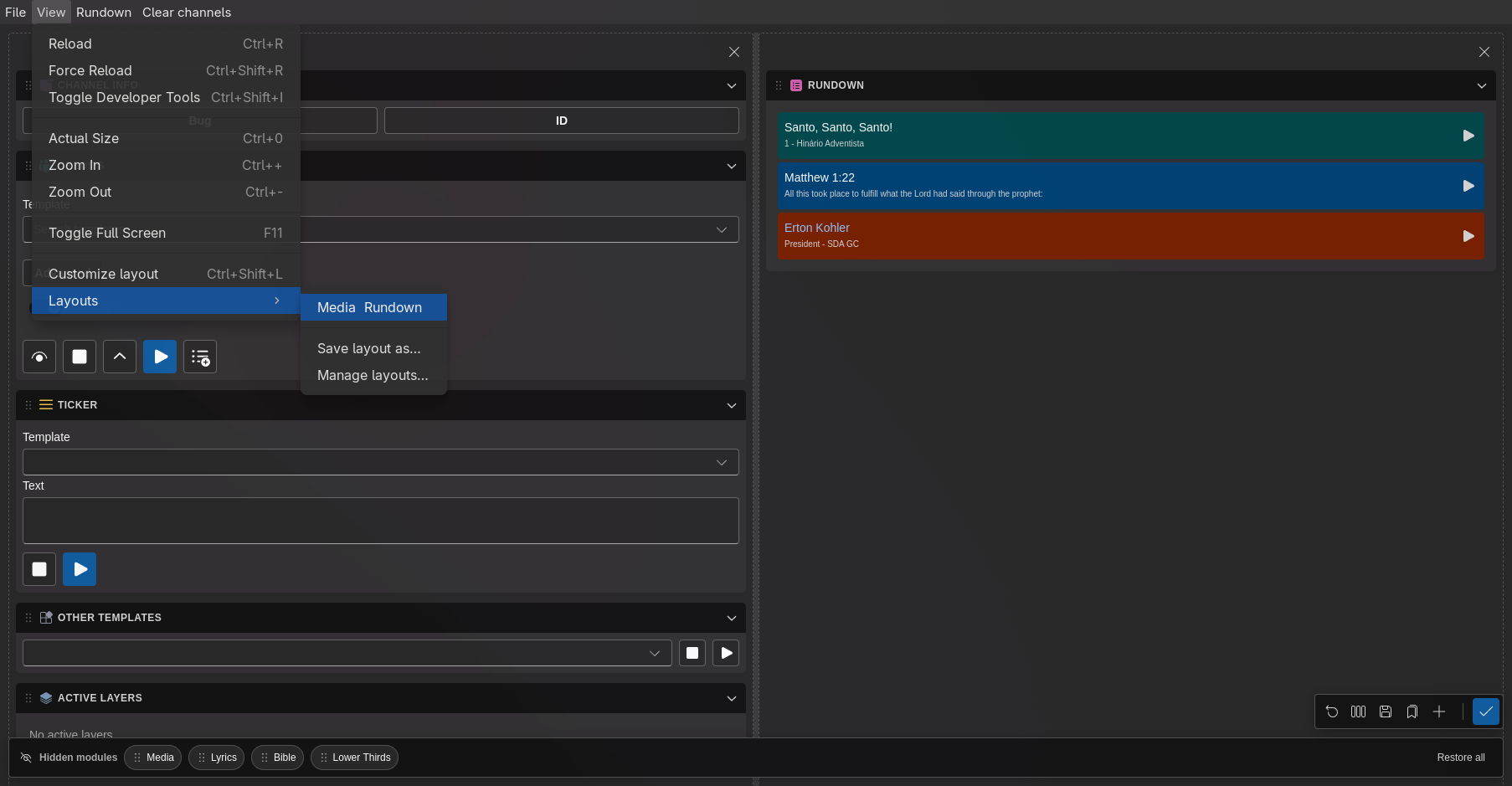
When saving, give the layout a clear name such as:
Sunday AMLyrics OperatorCompact Laptop
If you save using an existing name, 7CG asks whether the preset should be overwritten.
Managing Layouts
The Manage layouts dialog lets you:
- Apply a saved layout
- Rename a preset
- Delete a preset
The application menu updates dynamically as presets are added or removed, so operators can switch layouts quickly.
Recommended Workflow
- Enable only the modules you need in Interface
- Enter layout edit mode
- Arrange modules into task-focused columns
- Hide modules that are only needed occasionally
- Save the result as a named preset
- Repeat for each operator role or show type
Best Practices
- Keep the Rundown module wide enough for labels, status, and block actions
- Group related modules together, such as Lyrics + Bible or Channel Graphics + Credits
- Save a fallback preset that resembles the default layout
- Create simple presets for volunteers and more detailed presets for technical operators
Resetting
Use Reset if the current layout becomes confusing or if you want to start over from the default workspace.
Resetting the current layout returns the active workspace to its defaults. Save a preset first if you want to keep your custom arrangement.